

An iMac that won’t turn on does not automatically mean a serious hardware failure. Start with the power cable and electrical outlet, hold the power button for about 10 seconds, and disconnect accessories. If the iMac appears to power on but the screen stays blank, use a different troubleshooting path involving startup, macOS Recovery, and possibly Apple Diagnostics.
iMac Won’t Turn On: What Does “Won’t Turn On” Actually Mean?
The phrase “iMac won’t turn on“ can describe several different problems. That distinction matters because a completely dead iMac needs a different approach from one that reaches the Apple logo but cannot finish starting.
No power, no sound, no visible activity
If pressing the power button produces no visible response, start with the simplest possibility: power delivery. Check that the power cable is securely connected to the iMac and plugged into a working electrical outlet.
Apple recommends checking the cable for damage and trying another compatible cable or power adapter when available. These basic checks can rule out an external power problem before you start thinking about internal hardware.
iMac powers on but the screen stays black
Here’s the thing: a black screen does not always mean the iMac has no power. The Mac may actually be starting while the display remains blank.
Apple treats a Mac that starts to a blank screen as a separate troubleshooting situation. Restarting, entering macOS Recovery, and checking the startup disk may be appropriate depending on what happens next.
Apple logo, progress bar or question mark appears
Seeing an Apple logo, progress bar, flashing question mark, or prohibitory symbol tells you something important. The Mac has progressed beyond the basic power stage but is having trouble completing startup.
For example, a flashing folder with a question mark means the startup disk is unavailable or does not contain a working Mac operating system.
What to Do When Your iMac Won’t Turn On: Safe First Steps
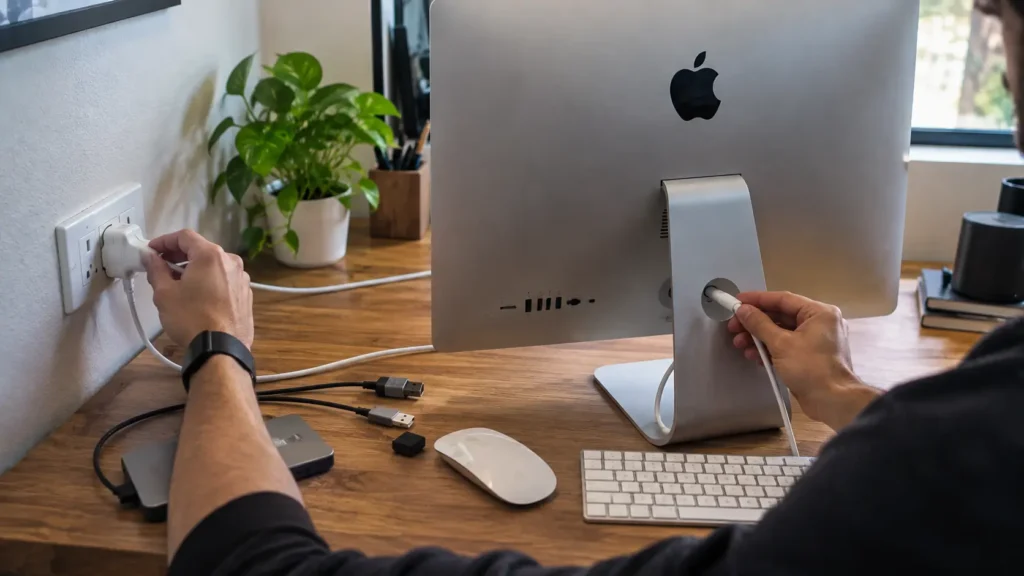
Before searching for complicated fixes, work through Apple’s basic troubleshooting sequence. Most people miss this because they jump directly to software resets or assume an expensive component has failed.
Step 1: Check the power cable and electrical outlet
Look closely at the power cable. Make sure it is not visibly damaged and that both ends are firmly connected. Then check whether the electrical outlet is working.
Testing another compatible power cable can also help. The idea is simple: eliminate the external power source before investigating internal components. Apple specifically recommends checking the power connection and trying another compatible cable when possible.
Step 2: Hold the iMac power button for about 10 seconds
Press and hold the power button for about 10 seconds. Release it completely, then press and release the power button normally.
This is one of Apple’s first recommended actions when a Mac appears not to turn on. Do not repeatedly tap the button and assume nothing is happening. Give the full procedure a proper try.
Step 3: Disconnect all accessories
Disconnect external drives, printers, USB hubs, mobile devices, and other accessories.
A faulty accessory or damaged cable can sometimes interfere with startup. Apple specifically recommends disconnecting accessories and then repeating the power-button procedure.
Step 4: Reconnect power and try again
Reconnect the iMac to power and attempt a normal startup.
Keep external accessories disconnected for this test. If the Mac starts successfully, connect devices again one at a time. This can help identify whether a particular accessory or cable is involved.
Step 5: Check whether the Mac is actually turning on
Pay close attention to what appears on the screen.
Do you see an Apple logo? A progress bar? A flashing question mark? Or absolutely nothing?
That observation is valuable because troubleshooting an iMac with no visible response is different from troubleshooting an iMac that powers on but gets stuck during startup.
iMac Won’t Turn On After a Power Outage or Surge
A power outage can make an iMac failure feel much more serious, especially when the computer was working normally immediately beforehand. However, an outage alone does not prove that an internal power supply or logic board has failed.
Check the outlet and cable before assuming surge damage
Start outside the iMac.
Confirm that the electrical outlet works and that the power cable is secure and undamaged. If another compatible cable is available, testing it is a useful way to eliminate a cable fault.
Disconnect accessories and repeat the basic startup process
Remove all nonessential accessories and repeat the basic power-button procedure.
This is important because troubleshooting should move from simple external causes to more complex internal causes. There is little value in opening the computer before completing Apple’s documented external checks.
When power-related symptoms suggest professional diagnosis
If there is still no response after checking the outlet, cable, accessories, and power button, professional diagnosis may be necessary.
Do not tell yourself that the power supply is definitely broken just because the outage happened first. A technician needs to test the machine before identifying a failed component. Apple similarly advises that a Mac that still does not turn on may need service.
What If the iMac Turns On but the Screen Is Black?
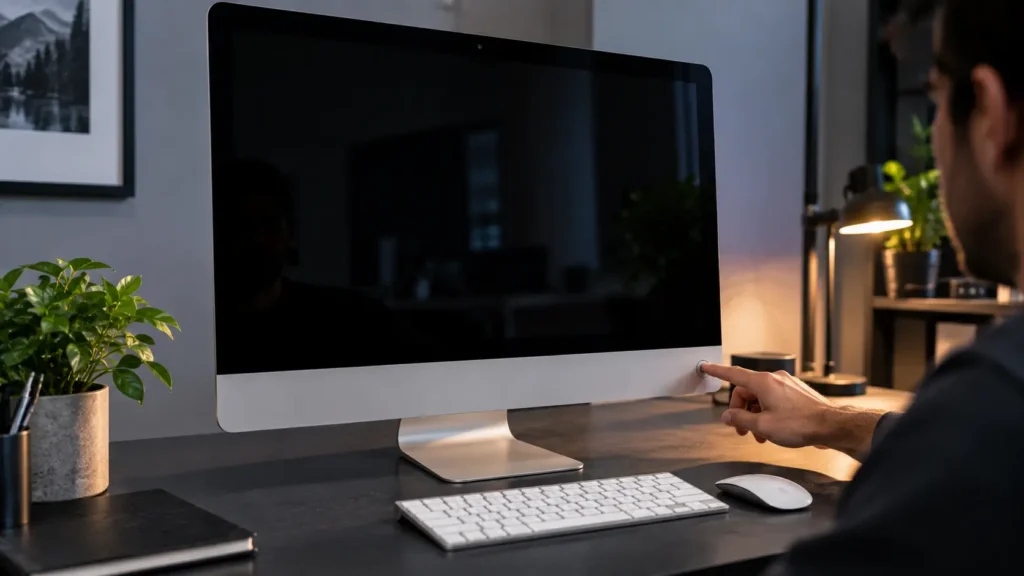
This situation needs its own troubleshooting path. A Mac that appears to power on but stays on a black, grey, or blue screen is different from an iMac that shows no response at all.
Apple recommends turning the Mac off and back on before moving into macOS Recovery.
Restart the iMac after holding the power button
Hold the power button for up to 10 seconds until the Mac turns off. Then press the button normally to start it again.
If the screen remains blank, do not keep repeating the same action indefinitely. Move to Recovery troubleshooting.
Start macOS Recovery on Apple silicon
For an iMac with Apple silicon, press and hold the power button. Continue holding it until you see Loading startup options or the Options icon.
Release the power button, select Options, and continue. macOS Recovery provides access to tools such as Disk Utility and macOS reinstallation.
Start macOS Recovery on an Intel iMac
On an Intel-based iMac, press the power button and immediately hold Command-R.
Keep holding the keys until the Apple logo or spinning globe appears. From macOS Recovery, you can access Apple’s recovery utilities and troubleshoot startup problems.
Use Disk Utility to repair the startup disk
If you can reach Recovery, open Disk Utility and use it to check and repair the startup disk.
This is particularly relevant when the Mac displays a question mark or cannot find its normal startup system. Apple recommends repairing the startup disk before moving to further recovery steps.
Reinstall macOS only after the appropriate Recovery troubleshooting
Do not jump straight to reinstalling macOS when the issue is simply that an iMac appears completely dead.
Reinstalling macOS becomes relevant when the Mac can access Recovery and startup problems remain after the appropriate disk troubleshooting. Apple provides Recovery specifically for repairing, reinstalling, or otherwise working with the startup system.
Should You Reset the SMC on an iMac?
There is a lot of old Mac troubleshooting advice online. One of the most common examples is telling every iMac owner to reset the SMC.
That advice needs an important qualification.
SMC reset applies to Intel-based Macs, not Apple silicon
Apple’s current guidance states that SMC reset applies to older Intel-based Macs. You do not need to reset the SMC on a Mac with Apple silicon.
This distinction matters for newer M-series iMac models.
How to reset the SMC on an Intel desktop Mac
If you have an Intel iMac and SMC troubleshooting is appropriate, use Apple’s instructions for your specific Mac generation.
Avoid copying an SMC procedure from an old forum without checking the model. The procedure can differ between Mac generations, so the safest approach is always the manufacturer’s current documentation.
Why “reset SMC on every iMac” is outdated advice
An Apple silicon iMac follows a different architecture and does not require the traditional Intel SMC reset procedure.
So when an article says “reset the SMC first on any iMac”, treat that advice carefully. Apple itself distinguishes Intel-based Macs from Apple silicon Macs in its current guidance.
Can Apple Diagnostics Find an iMac Hardware Problem?
Apple Diagnostics is Apple’s built-in hardware testing tool. It can help identify a possible hardware problem and provide information that can be useful when arranging service.
Run Apple Diagnostics on Apple silicon
For an Apple silicon iMac, press and hold the power button until startup options appear.
When Options appears, release the power button. Then press and hold Command-D until the Mac restarts into diagnostics. Follow the onscreen instructions.
Run Apple Diagnostics on an Intel iMac
On an Intel iMac, turn it on and immediately hold the D key.
If that does not work, Apple recommends trying Option-D instead. Release the key when the diagnostic screen or language selection appears.
Save the diagnostic reference code before contacting support
If Apple Diagnostics displays a reference code, save it.
Take a photograph or write the code down. Instead of simply telling a technician that your iMac “doesn’t work,” you can provide the diagnostic information generated by the Mac itself.
What the Startup Screen Is Telling You
Startup symbols can provide clues about where the problem is happening. Think of them as status messages rather than random errors.
Flashing folder with a question mark
A flashing folder with a question mark means the Mac cannot find an available startup disk containing a working Mac operating system.
Apple recommends starting from macOS Recovery and using Disk Utility to repair the startup disk. If the issue continues, reinstalling macOS or professional service may be necessary.
Circle with a line through it
The prohibitory symbol, which looks like a circle with a line through it, indicates that the Mac cannot use the startup system in its current state.
This moves the problem away from a simple power connection and toward startup or macOS troubleshooting.
Apple logo with a stuck progress bar
If the Apple logo appears but the progress bar stops, the iMac has successfully reached the startup process but cannot complete it.
At this stage, macOS Recovery and startup-disk troubleshooting may be more appropriate than repeatedly pressing the power button.
Blank screen with no visible startup information
A persistent blank screen can have a software-related cause, but it may also require service when Recovery cannot be reached or the problem continues.
Apple’s current blank-screen guidance recommends Recovery troubleshooting and states that continued failure may require service.
When Is an iMac No Longer a DIY Troubleshooting Problem?
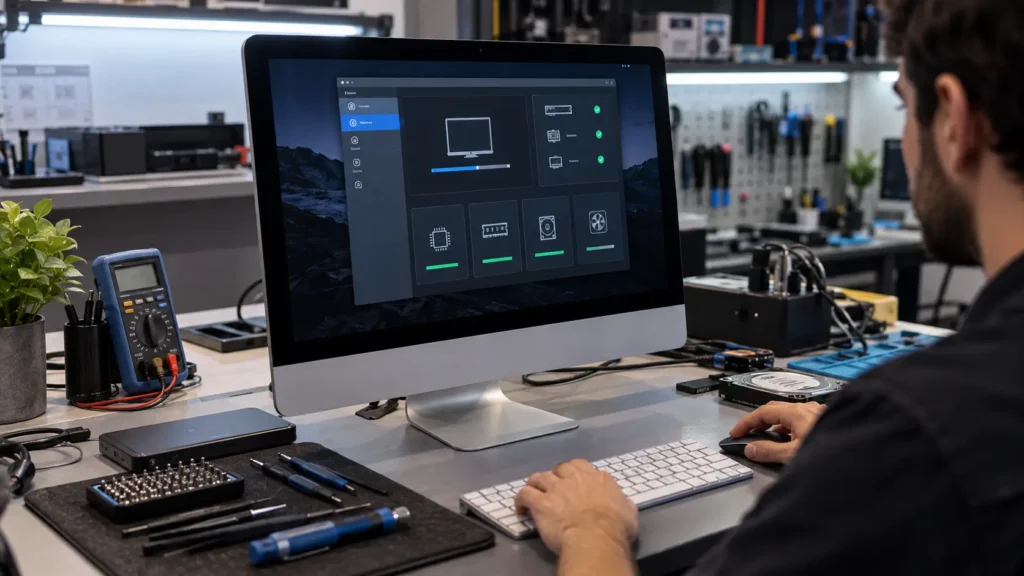
Basic troubleshooting is useful when you are checking the power connection, disconnecting accessories, using Recovery, or running Apple Diagnostics.
The situation changes when there is physical damage, liquid exposure, repeated failure, or no response after Apple’s basic steps.
The iMac remains completely unresponsive after Apple’s basic steps
If the cable and outlet are working, accessories are disconnected, and the 10-second power-button procedure changes nothing, stop repeating the same steps.
Apple states that a Mac that still does not turn on may need service.
The Mac has physical or liquid damage
Physical impact or liquid exposure requires extra caution.
Do not keep repeatedly powering on a computer that may have internal liquid or electrical damage. Professional inspection can establish what was affected without turning a simple fault into additional damage.
You suspect an internal power, logic-board or other hardware fault
A failed power supply, logic board, display circuit, storage device, or another internal component can only be confirmed through appropriate diagnosis.
The symptom itself does not prove which part has failed. That is why a repair quote should ideally follow a diagnosis, rather than simply replacing expensive components based on a guess.
Should You Open an iMac Yourself?
Opening an iMac is very different from checking its cable or running Apple Diagnostics.
Why internal iMac repair is different from basic troubleshooting
Basic troubleshooting does not require opening the machine. Internal repair can involve delicate components, specialized tools, and model-specific procedures.
Apple provides repair manuals for supported models and advises appropriate repair procedures. Improper disassembly can cause damage or injury.
Electrical and component safety risks
Power-related components deserve particular care. A repair attempt without the right knowledge can damage the computer or create a safety risk.
For a completely dead iMac, getting a diagnosis before opening the device is usually more useful than following an unverified online repair video.
When to stop troubleshooting and book professional service
Stop DIY troubleshooting when the iMac remains dead after Apple’s basic checks, when there is physical or liquid damage, or when the machine cannot reach Recovery or Diagnostics despite following the appropriate procedure.
At that point, professional iMac repair becomes the practical next step.
iMac Repair in Malta: What to Do If Troubleshooting Doesn’t Work
For users in Malta, the troubleshooting article should naturally connect the technical solution with a local repair option.
iMac repair in Gżira
PulpTech Malta lists iMac repair services in Gżira, including troubleshooting and hardware-related repair services. Its workshop is listed at No. 70, 71 Triq Sir Frederick C. Ponsonby, Gzira, Malta, GZR 1070. The business also publishes its contact number as +356-27480728 and WhatsApp number as +356-77480727.
iMac repair across Malta
Local search intent can extend beyond Gżira to Valletta, Sliema, Birkirkara, Mosta, Naxxar, San Ġwann, Swieqi, Attard, Floriana, Żabbar, Żurrieq, and other Maltese localities.
The official Office of the Address Registrar lists these locations as Malta localities. Use them naturally in content and service pages instead of stuffing every locality into one article.
What information to provide before requesting an iMac repair
Before contacting a repair provider, note:
• Your iMac model or approximate year
• Whether it uses Intel or Apple silicon
• Whether anything appears on the display
• Whether the problem followed an outage, surge, update, or accessory connection
• Any startup symbol you see
• Any Apple Diagnostics reference code
That information gives the technician a much clearer starting point.
Apple-certified vs independent repair options
Apple provides different service-provider options, including Apple Authorised Service Providers and Independent Repair Providers. The exact availability of services and parts depends on the repair, device, and region.
When choosing a provider, look for clear diagnostics, transparent communication, appropriate parts, and a repair process that explains what was actually found.
iMac Won’t Turn On: Quick Troubleshooting Checklist
Use this checklist before assuming your iMac needs a major repair:
- Check the power cable and electrical outlet.
- Hold the power button for about 10 seconds.
- Release it, then press the power button normally.
- Disconnect all accessories and try again.
- Identify whether you see an Apple logo, progress bar, question mark, prohibitory symbol, or blank screen.
- If the Mac powers on but remains blank, try macOS Recovery.
- Use Disk Utility when Recovery is available and a startup-disk problem is suspected.
- Run Apple Diagnostics when the Mac can reach the diagnostic environment.
- If the problem continues, arrange professional service.
The key is to follow the symptom. No power, black screen, and startup errors are not the same problem.
Frequently Asked Questions About an iMac That Won’t Turn On
Why won’t my iMac turn on?
An iMac can fail to respond because of a power connection, cable, accessory, startup, software, or hardware problem. Apple recommends checking the power connection, holding the power button for about 10 seconds, disconnecting accessories, and trying again before moving to deeper troubleshooting.
How long should I hold the iMac power button?
Hold the iMac power button for about 10 seconds, release it, and then press and release the button normally. This is part of Apple’s current troubleshooting sequence for a Mac that appears not to turn on.
What should I do if my iMac turns on but the screen is black?
First, hold the power button for up to 10 seconds to turn the Mac off, then restart it. If the screen remains blank, try macOS Recovery. Apple recommends using Disk Utility from Recovery when appropriate and reinstalling macOS only after the relevant recovery troubleshooting.
Should I reset the SMC if my M1, M3 or M4 iMac won’t turn on?
No. Apple’s current guidance says the traditional SMC reset applies to Intel-based Macs. A Mac with Apple silicon does not need the old SMC reset procedure.
How do I start Recovery Mode on an iMac?
On Apple silicon, hold the power button until startup options appear, select Options, and continue. On an Intel-based iMac, press the power button and immediately hold Command-R until the Apple logo or spinning globe appears.
What does a flashing question mark mean on an iMac?
A flashing question-mark folder means the Mac cannot find an available startup disk containing a working Mac operating system. Apple recommends starting macOS Recovery and using Disk Utility to repair the startup disk.
Can Apple Diagnostics test an iMac that won’t turn on?
Apple Diagnostics can help identify possible hardware problems when the Mac can reach its diagnostic environment. Apple silicon Macs use Command-D from startup options, while Intel Macs use the D key during startup.
When should I take my iMac to a repair technician?
Consider professional service when the iMac remains unresponsive after checking the power connection, accessories, and power-button procedure, or when there is physical or liquid damage. Apple states that a Mac that still does not turn on may need service.
Conclusion
An iMac Won’t Turn On? Troubleshooting Guide Before You Panic situation does not mean you should immediately replace the computer. Start with the power cable, outlet, 10-second power-button procedure, and accessory check.
Then identify what the iMac actually does. A black screen, Apple logo, flashing question mark, or complete lack of response points toward a different troubleshooting path.
For Apple silicon models, use the current startup and macOS Recovery process. For older Intel iMacs, certain Intel-specific procedures such as SMC reset may still apply. Apple Diagnostics can also help identify possible hardware issues when the Mac can reach the diagnostic environment.
For customers in Malta, professional iMac repair may be the next step when Apple’s basic troubleshooting does not restore startup. PulpTech Malta currently lists Apple and iMac repair services from its Gżira workshop and publishes local contact details for customers.
Before replacing parts, diagnose the problem first. That approach can save time, protect your data, and help you avoid unnecessary repairs.